Docs
Batch Translation
Batch translation lets you upload an entire document and translate it all at once. Use it when you have a full book, a long document, or when you need to preserve the original formatting.
When to Use Batch vs. Chapter Translation
| Use Case | Recommended |
|---|---|
| Translating a full book (DOCX, EPUB, or TXT) | Batch Translation |
| Need to preserve formatting, images, and styling | Batch Translation (Format Preservation mode) |
| Translating at scale — many chapters at once | Batch Translation |
| Translating a short passage or single chapter | Chapter Translation |
| Maximum fluency with human review | Chapter Translation |
| Experimenting with settings and custom instructions | Chapter Translation |
General rule: Start with chapter translation to refine your settings, then switch to batch translation for the full document.
Supported File Formats
- DOCX (Microsoft Word) — Supports both text extraction and format preservation
- EPUB (E-book) — Supports both text extraction and format preservation
- TXT (Plain text) — Text extraction only
The Batch Translation Wizard
Batch translation uses a step-by-step wizard. The steps adapt based on your file type and chosen settings.
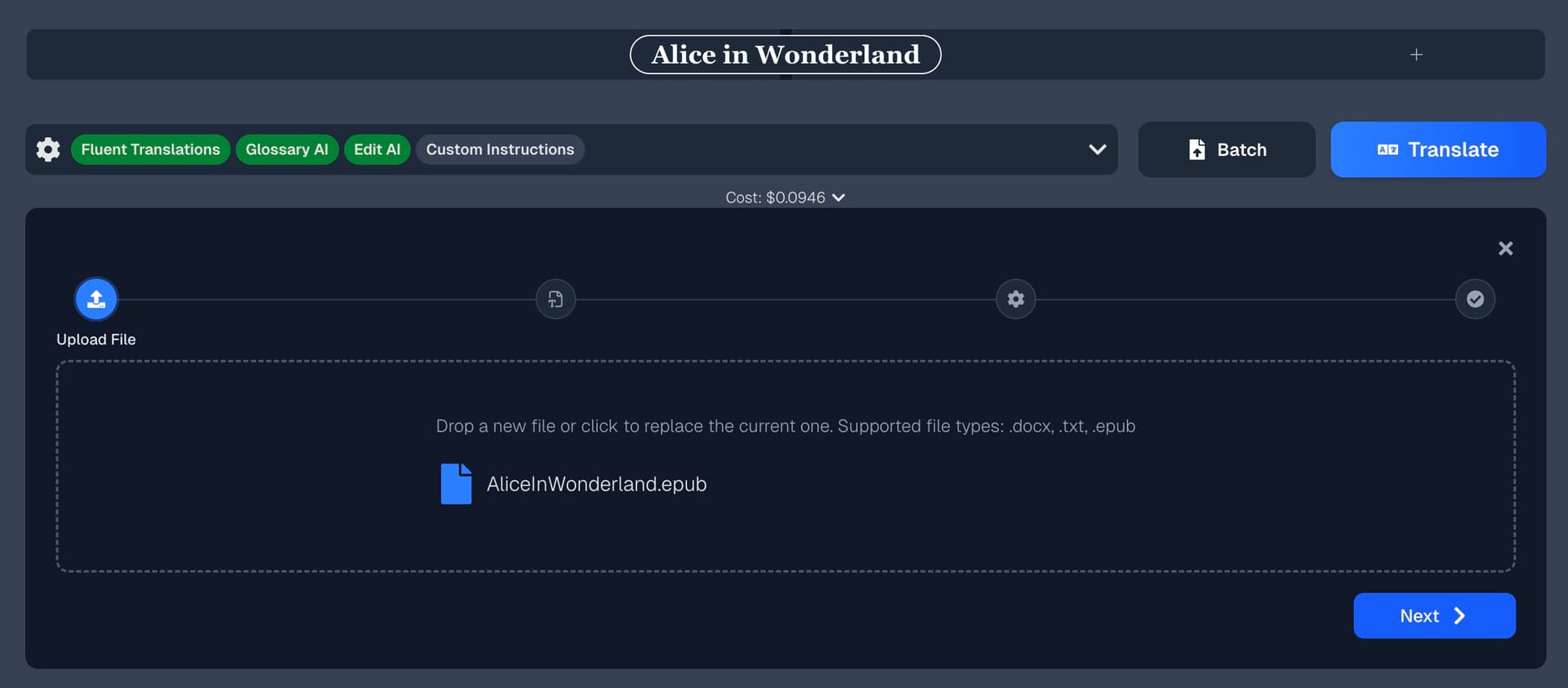
Step 1: Upload Your File
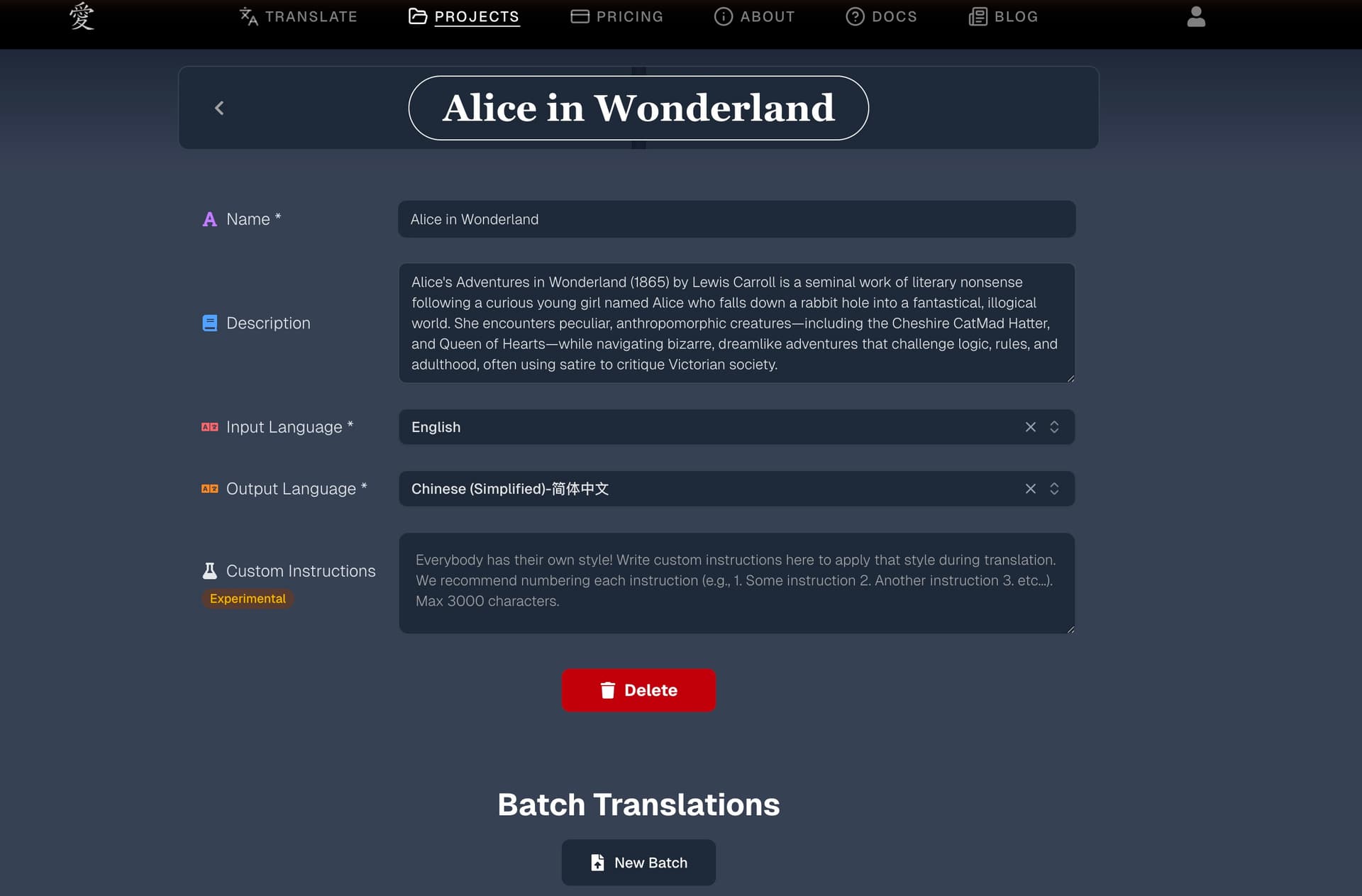
Click the Batch button in the translation interface, then drag and drop your file or click to browse. You can also start a new batch from your project's settings page under Batch Translations.
Step 2: Choose Processing Mode (DOCX/EPUB only)
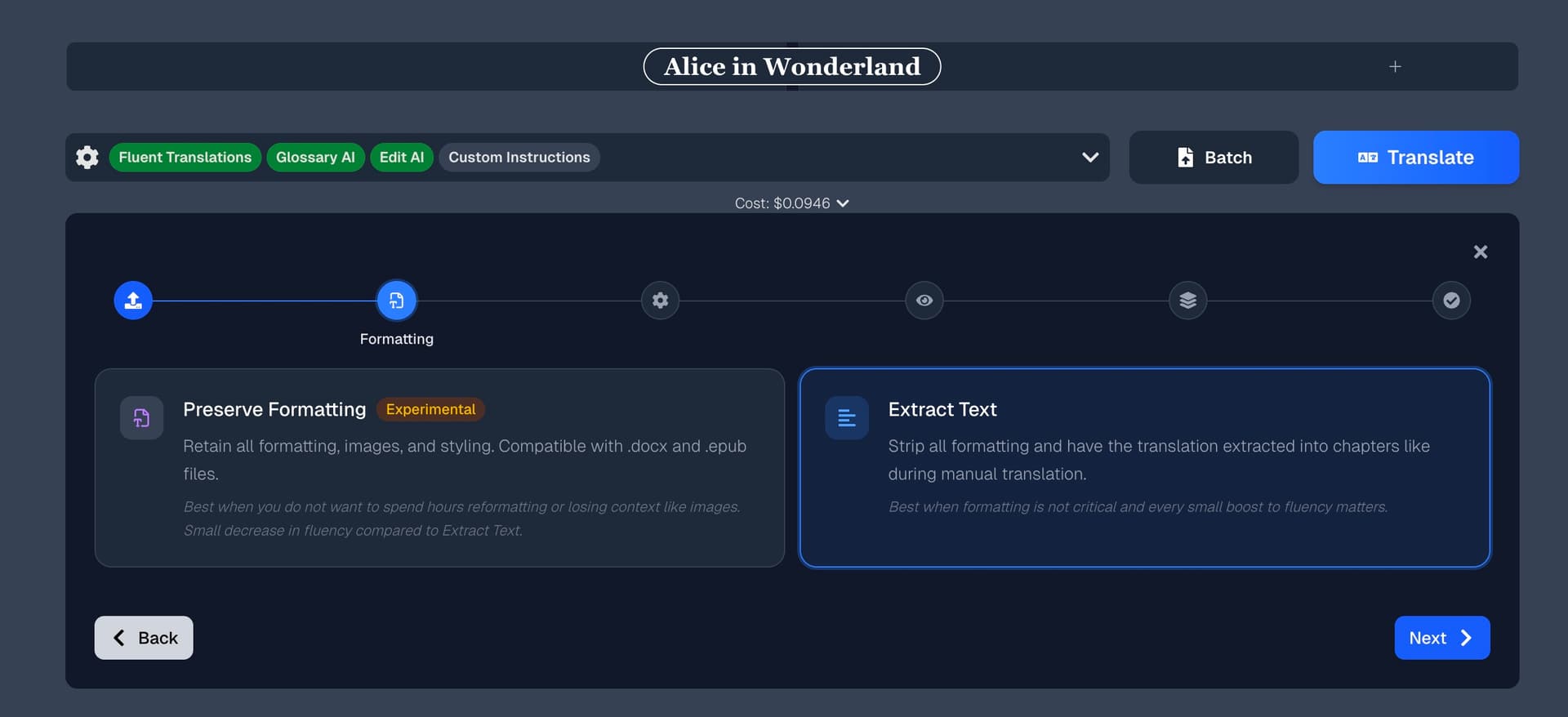
This is the most important decision in batch translation. You have two options:
| Text Extraction | Format Preservation | |
|---|---|---|
| What it does | Strips formatting, extracts raw text, and splits into chapters | Keeps original formatting, images, and styling |
| Best for | Maximum quality and fluency; text organized into chapters on the platform | Documents where layout matters; need a translated file for Word or an e-reader |
| What you get | Individual chapters in your project to review and export | A downloadable translated file (DOCX or EPUB) |
| Quality modes | Fluent or Basic | Fluent only (locked) |
Step 3: Translation Settings
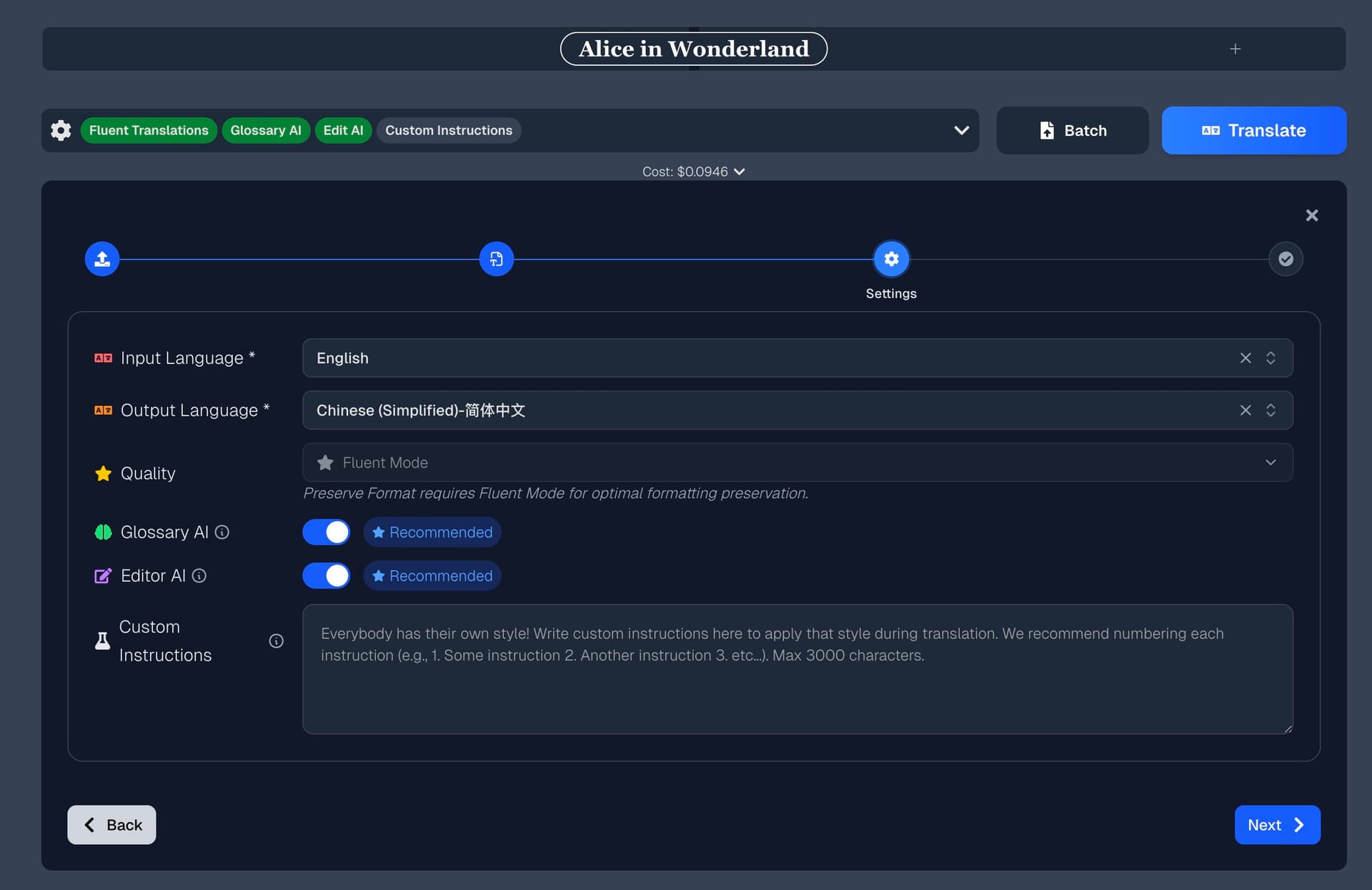
Configure your translation just like chapter translation:
- Languages — Source language is auto-detected from your file. Select your target language.
- Quality Mode — Fluent Mode (recommended) or Basic Mode (~1/10 cost). Locked to Fluent Mode for Format Preservation.
- Glossary AI — Extracts and manages key terms
- Editor AI — Post-translation editing pass
- Structure AI — Automatic chapter break detection (text extraction mode only)
- Custom Instructions — Style notes and guidelines
See the Chapter Translation guide for detailed explanations of each setting.
Structure AI (Text Extraction Only)
This experimental feature automatically detects where chapters begin and end in your document. It uses AI to find logical section breaks and organize your text into chapters.
Tip: Structure AI works best when it has clear chapter markers to learn from (e.g., "Chapter 1", "Part Two"). If your document has unusual section breaks, you may want to review and edit the detected breaks in the next step.
Step 4: Text Preview (Text Extraction Only)
Review a preview of the extracted text before translation begins. This lets you verify that the text was extracted correctly.
Step 5: Section Breaks (Text Extraction + Structure AI Only)
If Structure AI is enabled, you'll see the detected section breaks in a table. You can:
- Review the auto-detected breaks
- Edit break markers manually
- Regenerate with AI if the results aren't right
- Check which breaks match text in the preview
Tip: Section break examples need to match actual text in your document. If a break marker shows as "not found," edit it to match the actual text or remove it.
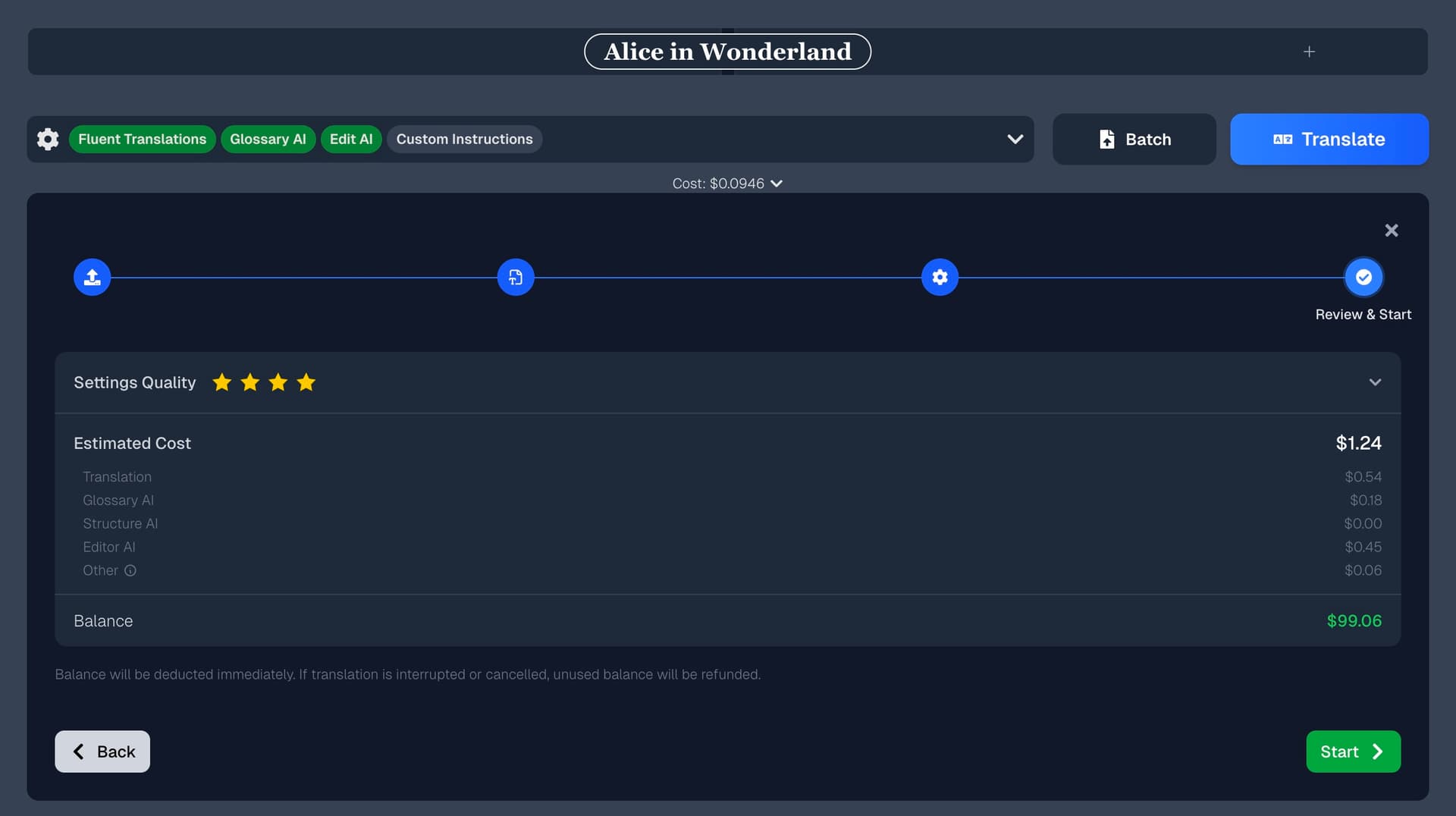
Step 6: Review and Start
The final step shows:
- Estimated cost based on your text length and settings
- Your current balance and whether you have enough credits — if insufficient, click the yellow button to add the necessary funds
- All selected settings for a final review
Click Start Translation to begin.
Post Translation
Text Extraction Mode
Your translated text appears as individual chapters in the project. Navigate through them in the sidebar, review, and export as needed.
Format Preservation Mode
A Download button appears in the batch history. Click it to download the translated file in its original format (DOCX or EPUB).
Cancellation
You can cancel a batch translation at any time while it's in progress. Unused credits are refunded proportionally based on how far along the translation was.
Tips for Batch Translation
- Test settings first. Run a chapter translation with the same settings before committing to a full batch. This saves credits and lets you refine custom instructions.
- Choose the right mode for your needs. Text extraction tends to be more useful when maximum fluency is the goal, while format preservation is ideal for ease of translating at scale or when preserving your document's layout matters.
- Review glossary terms. Take the time during the glossary review pause to correct any misidentified terms. This affects every chapter in the batch.
- Check your balance. The review step shows whether you have enough credits. Top up before starting if needed.
- One batch at a time. You can't start a new batch while one is in progress. Wait for it to complete or cancel it first.