Docs
Glossary Management
A glossary is your project's dictionary of key terms — character names, locations, organizations, and unique concepts. AI Novel Translation uses the glossary during translation to keep terminology consistent across every chapter.
Why Glossaries Matter
Without a glossary, the same character name might be translated differently across chapters. "이현" could become "Lee Hyun" in Chapter 1, "Yi Hyeon" in Chapter 5, and "Ihyeon" in Chapter 10. A glossary prevents this by locking in translations for key terms.
How Glossaries Work
Automatic Generation (Glossary AI)
When Glossary AI is enabled (recommended), the system automatically:
- Scans your source text for proper nouns, character names, places, and key terms
- Checks them against your existing glossary
- Proposes new terms with translations and gender tags
- Presents them for your review before translation begins
This happens every time you translate a chapter — your glossary grows with each translation.
Manual Editing
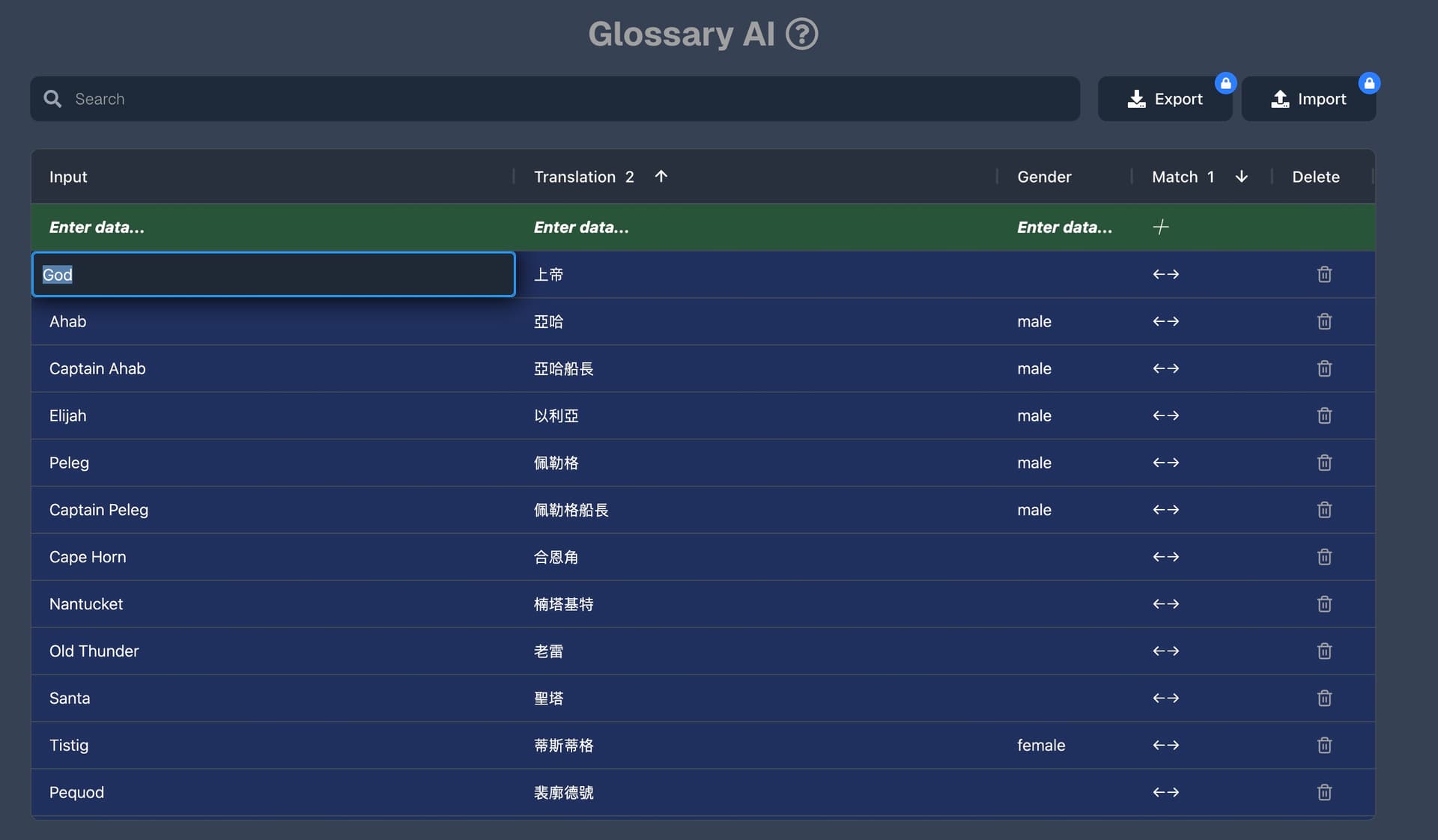
You can also manage glossary terms directly in the glossary table:
- Add terms using the input row at the top of the table (highlighted in green)
- Edit terms by clicking on any cell in the table
- Delete terms using the delete button on each row
- Search using the filter to find specific terms
Glossary Columns
| Column | Description |
|---|---|
| Original Language | The term in the source language |
| Translation | The translated term in the target language |
| Gender | For character names: male, female, or unknown. Leave blank for non-character terms. |
| Date Created | When the term was added |
Scoping: One Glossary Per Project
Glossaries are tied to a project. Since each project has a fixed language pair, your glossary should contain terms for that one language pair.
For example, a project translating Korean to English should have:
- Original: Korean terms
- Translation: English equivalents
If you're translating the same book into multiple languages, create a separate project for each language pair and import the relevant glossary terms.
Import and Export
Exporting Your Glossary
Click the Export button to download your glossary as a CSV file. The file includes all terms with columns: original_language, translated_language, gender.
Use cases for export:
- Backup your glossary
- Share with collaborators
- Use as a starting point for a new project
Importing a Glossary
Click the Import button to upload a CSV file with glossary terms.
CSV format requirements:
- Must include columns:
original_language,translated_language,gender - Maximum file size: 20MB
Import Modes
| Mode | Behavior |
|---|---|
| Append | Adds new terms to your existing glossary. Duplicates (same original term) are skipped. |
| Replace | Deletes all existing terms first, then imports the new ones. Use with caution. |
Tip: Duplicate detection is case-insensitive. If "Lee Hyun" already exists and you import "lee hyun," it will be skipped (in append mode) or the old one replaced (in replace mode).
Tip: Gender values are updated during import. If an existing term has gender "unknown" and you import the same term with gender "male," the gender will be updated to "male." This only works in one direction — a term with "male" won't be changed back to "unknown."
Tips for Glossary Management
- Let Glossary AI do the heavy lifting. It catches most terms automatically. Focus your manual effort on corrections, not data entry.
- Review earlier rather than later. Correcting a term in Chapter 1 saves you from having it wrong in every subsequent chapter.
- One language pair per project. Don't mix Korean-to-English and Korean-to-French terms in the same project. Use separate projects and import/export to share terms.