Docs
Chapter Translation
Chapter translation is where it all started. You paste in raw text, configure your settings, and get a high-quality translation with glossary consistency, optional editing, and a summary.
This is the best way to translate when you want full control over each piece of text.
The Translation Interface
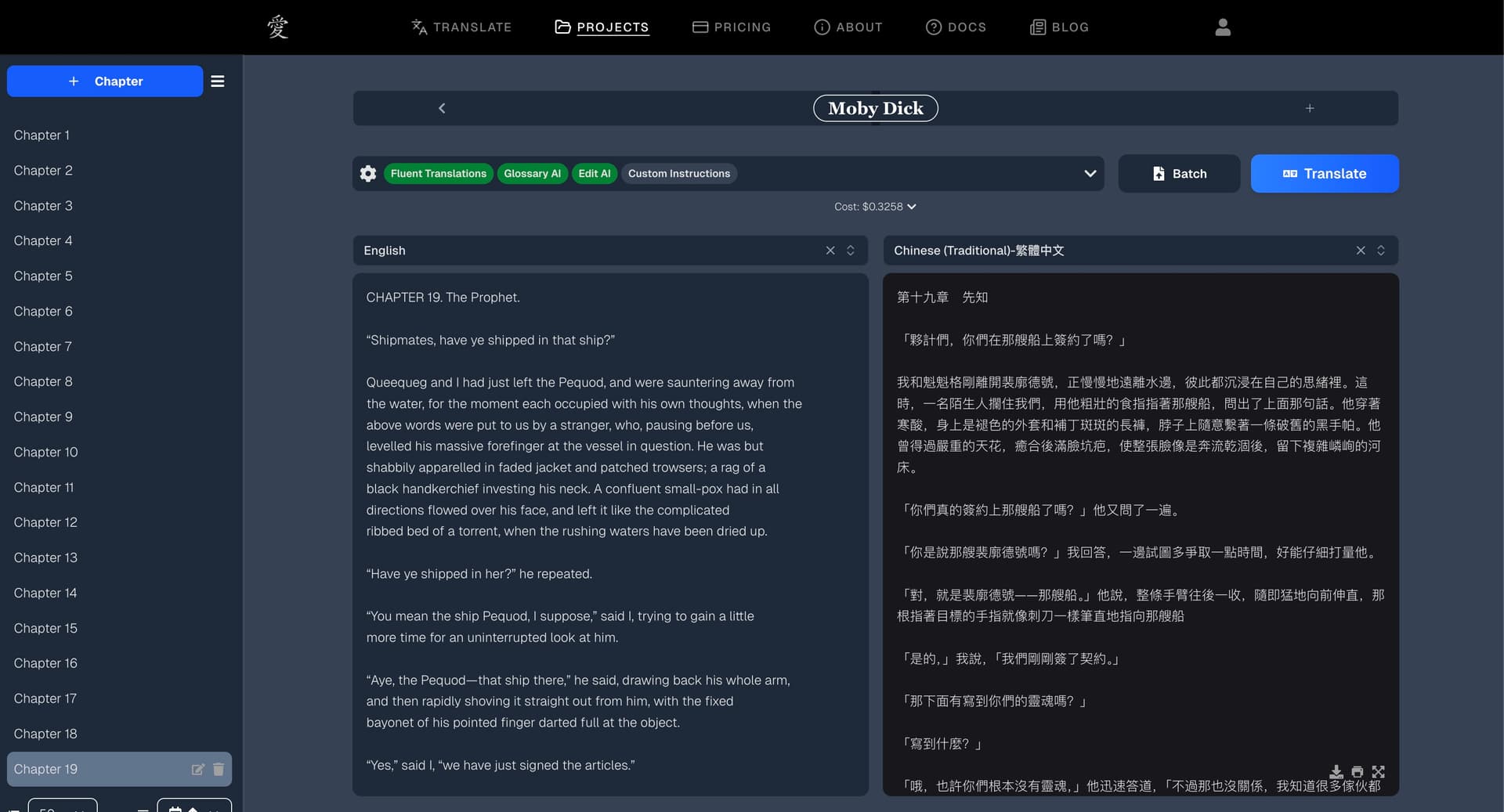
When you open a chapter, you'll see:
- Input area (left) — Where you paste or type your source text
- Output area (right) — Where the translation appears
- Language selectors — Source and target language dropdowns
- Settings panel — Quality, AI features, and custom instructions
- Glossary table (below) — Terms extracted and used during translation
How It Works
When you click Translate, the text goes through a multi-stage pipeline depending on what settings are selected:
Stage 1: Glossary Generation
The system scans your text and identifies key terms — character names, locations, organizations, unique concepts. It checks these against your existing glossary and proposes or updates terms.
Stage 2: Glossary Review
You get a chance to review the proposed glossary terms before translation begins. A 30-second auto-approve timer counts down, but you can pause it to take your time editing.
Stage 3: Translation
The core translation happens, using your glossary terms and custom instructions for context. If you've translated previous chapters in this project, the system uses that context too — so Chapter 5 is aware of what happened in Chapters 1–4.
Stage 4: Editor AI
An experimental editing pass analyzes the translation and proposes improvements — fixing awkward phrasing, improving flow, catching errors. You'll see suggested edits that you can accept or skip.
Stage 5: Summary
A brief summary of the translated content is auto-generated. This is useful for keeping track of what each chapter covers.
Running in the Background
Once you start a chapter translation, it runs on our servers — your browser doesn't need to stay open for it to finish. If you refresh the page, close the tab, or lose your internet connection, the translation keeps going. When you return to the chapter, the live progress and any review steps (glossary review, edit review) will reconnect automatically so you can pick up right where you left off.
Note: Chapter translations time out 48 hours after they start. If you leave a translation paused at a review step for longer than that, it will expire and you'll need to retry.
Settings Explained
Quality Mode
| Mode | Best For | Cost |
|---|---|---|
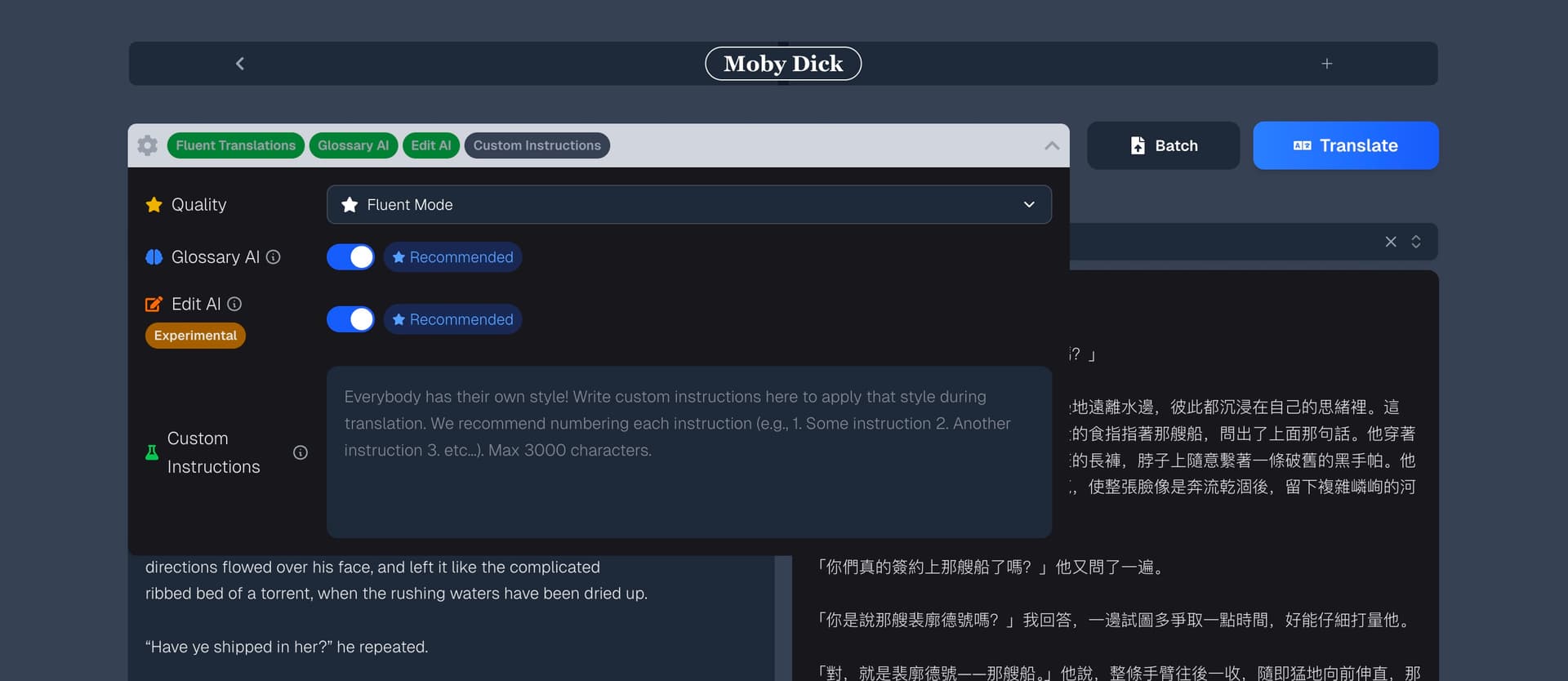
| Fluent Mode | Maximum quality — nuance, literary style, complex text. Recommended for most use cases. | Higher |
| Basic Mode | Quick drafts, simpler text, budget-friendly | ~1/10 the cost |
Tip: Fluent Mode is the default and recommended for most translation work. Basic Mode is great for getting a rough draft or when translating on a budget.
Glossary AI
Automatically extracts and manages key terms from your source text. This is one of the most important features for translation consistency that we pioneered.
When to turn it off: Really only if you're translating very short, standalone text where terminology consistency doesn't matter.
Editor AI
A post-translation editing pass that reviews the output for quality improvements. Recommended for those seeking the most fluent and professional results.
Custom Instructions
Free-text guidance that shapes how your content gets translated. This is the most powerful way to customize your translations. Max 3,000 characters.
Examples of effective custom instructions:
- "Use formal English throughout. Maintain Victorian-era language style."
- "Keep Korean honorifics (oppa, noona, etc.) untranslated."
- "Number each paragraph starting from 1."
- "Keep Italian dialogue untranslated — the characters are meant to code-switch."
- "Orcs should always speak in a rough, clipped tone. Short sentences, no formality."
Tips:
- Be specific and concrete
- Use numbered lists for multiple instructions
- Test with a sample chapter to see how instructions affect the output
- Custom instructions apply to both translation and editing stages
Language Selection
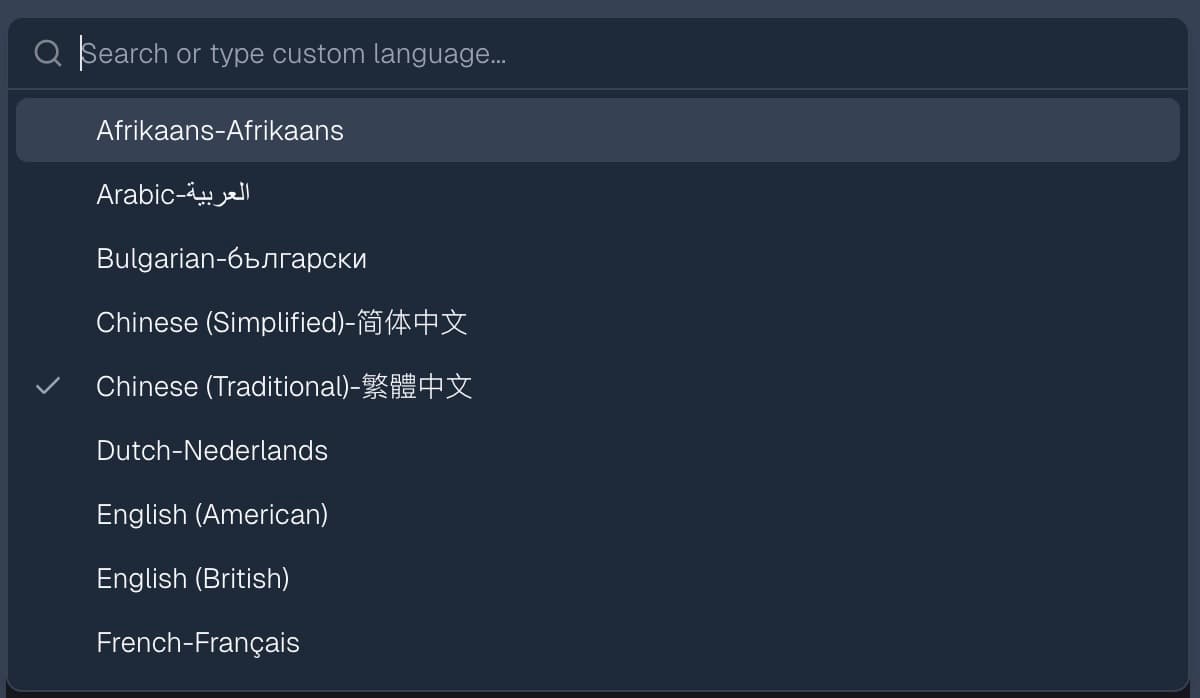
AI Novel Translation supports any language — just type it in. We have enhanced support for the languages shown in the dropdown (English, Chinese, Korean, Japanese, Vietnamese, Portuguese, Spanish, French, German, Russian, Arabic, Hebrew, and more), but you're not limited to those. If your language isn't listed, type it in and the system will translate it.
Tip: If you change the language pair after translating some chapters, you'll see a warning. Previous translations were done in the old language pair, and the glossary was built for that pair too. Consider creating a new project for a different language pair.
Character Limits
- Maximum input: 30,000 characters per chapter
- If your text is longer: Consider splitting it up or using Batch Translation, which handles documents of any length by automatically splitting them into chapters
Tips for Best Results
- Start small. Translate a short passage first to dial in your settings and custom instructions.
- Review glossary terms. The AI is good but not perfect — correcting a term early saves you from fixing it across every chapter later.
- Translate in order. The system uses previous chapter context, so translating Chapter 1 before Chapter 2 gives better consistency.
- Use custom instructions. Even a few lines of guidance can dramatically improve translation quality for your specific text.